MakeACopy
MakeACopy is an open-source document scanner app for Android that allows you to digitize paper documents with OCR functionality. The app is designed to be privacy-friendly, working completely offline without any cloud connection or tracking.


Features
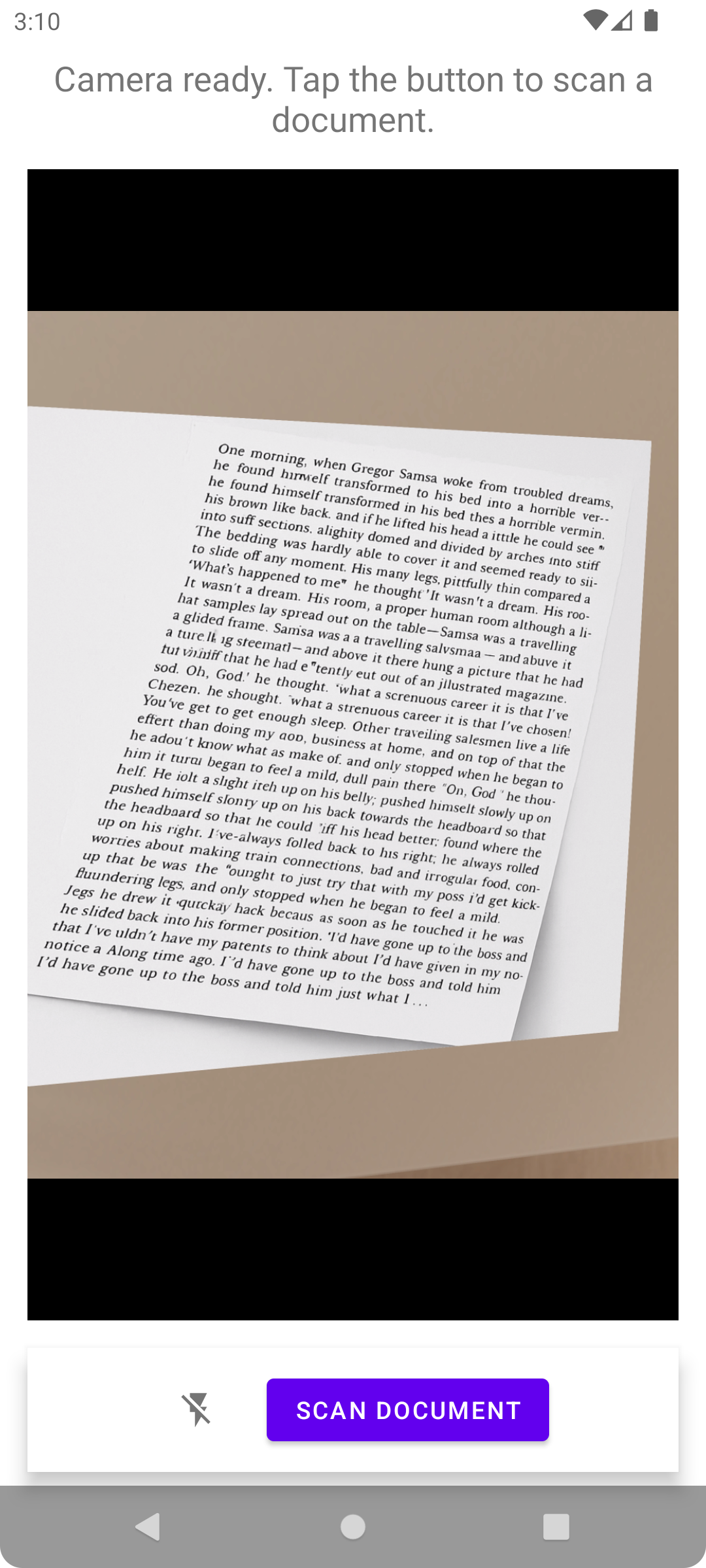
- Camera Scanning: Capture documents using the device camera
- Edge Detection: Automatic document edge detection using OpenCV, optionally enhanced by a custom-trained ONNX inference model
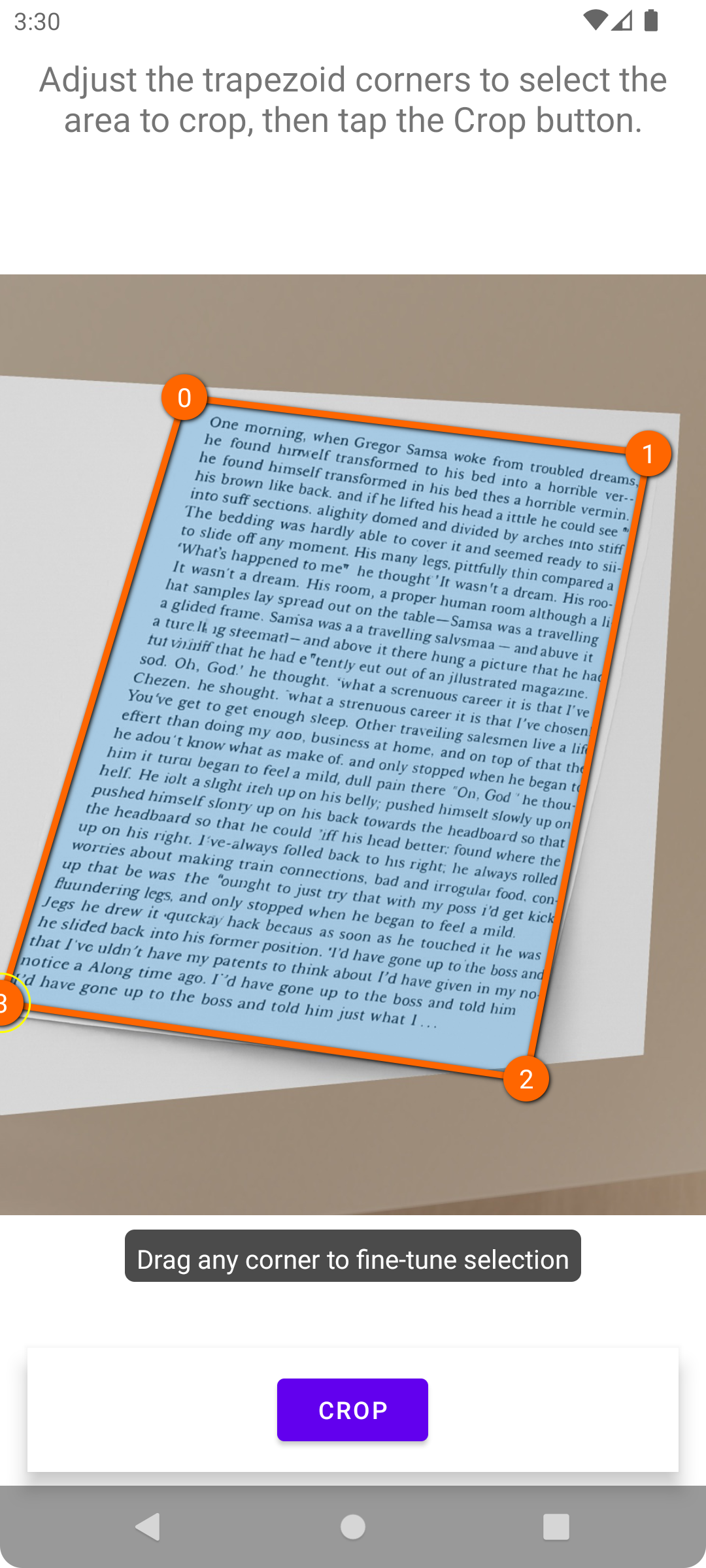
- Perspective Correction: Adjust and crop documents with manual or automatic perspective correction
- Image Enhancement: Apply filters (grayscale, contrast, sharpening)
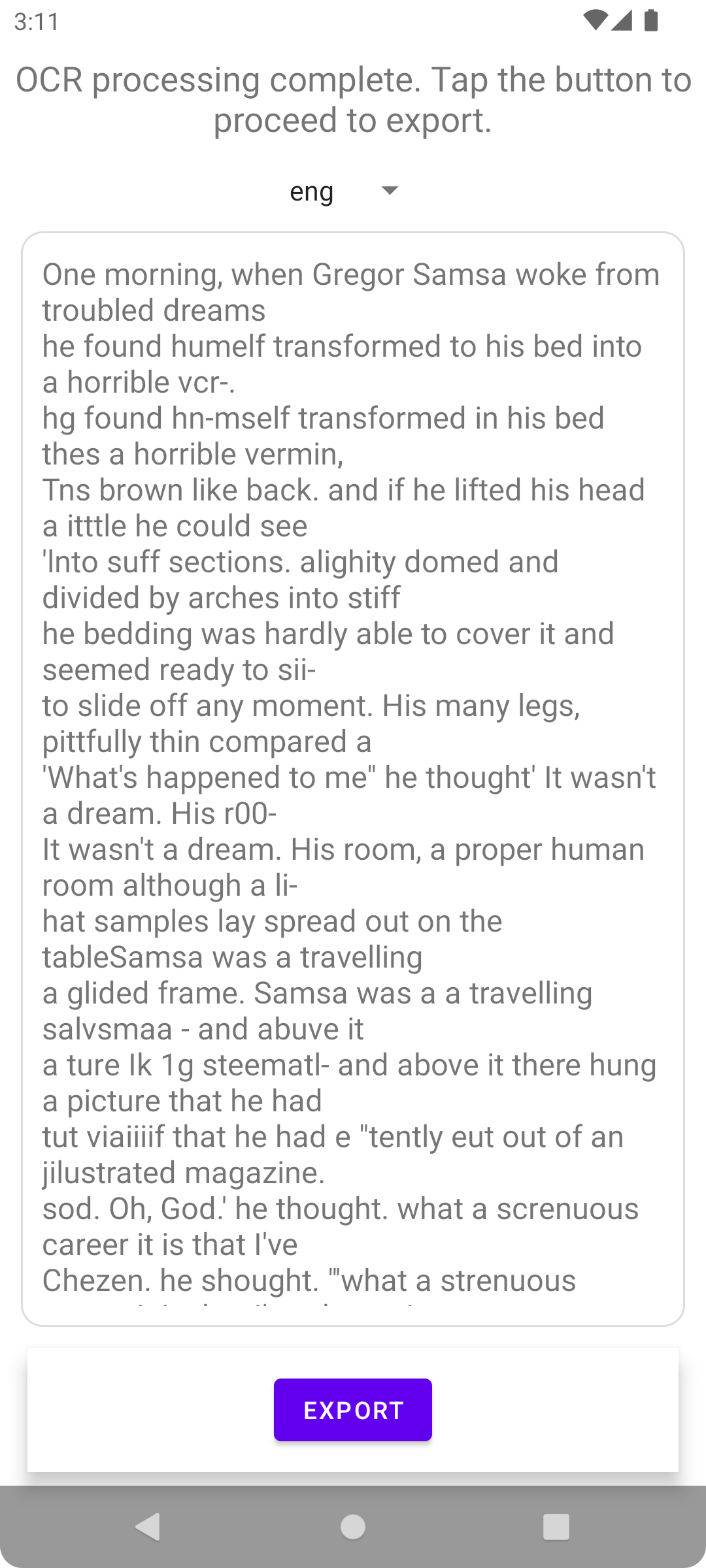
- OCR: Offline text recognition with PaddleOCR in the published paddle flavor; the standard Tesseract flavor remains available via GitHub Releases
- OCR Review: Interactive review and correction of OCR results with word-level editing, dictionary-based suggestions, confidence highlighting, and re-OCR for individual words
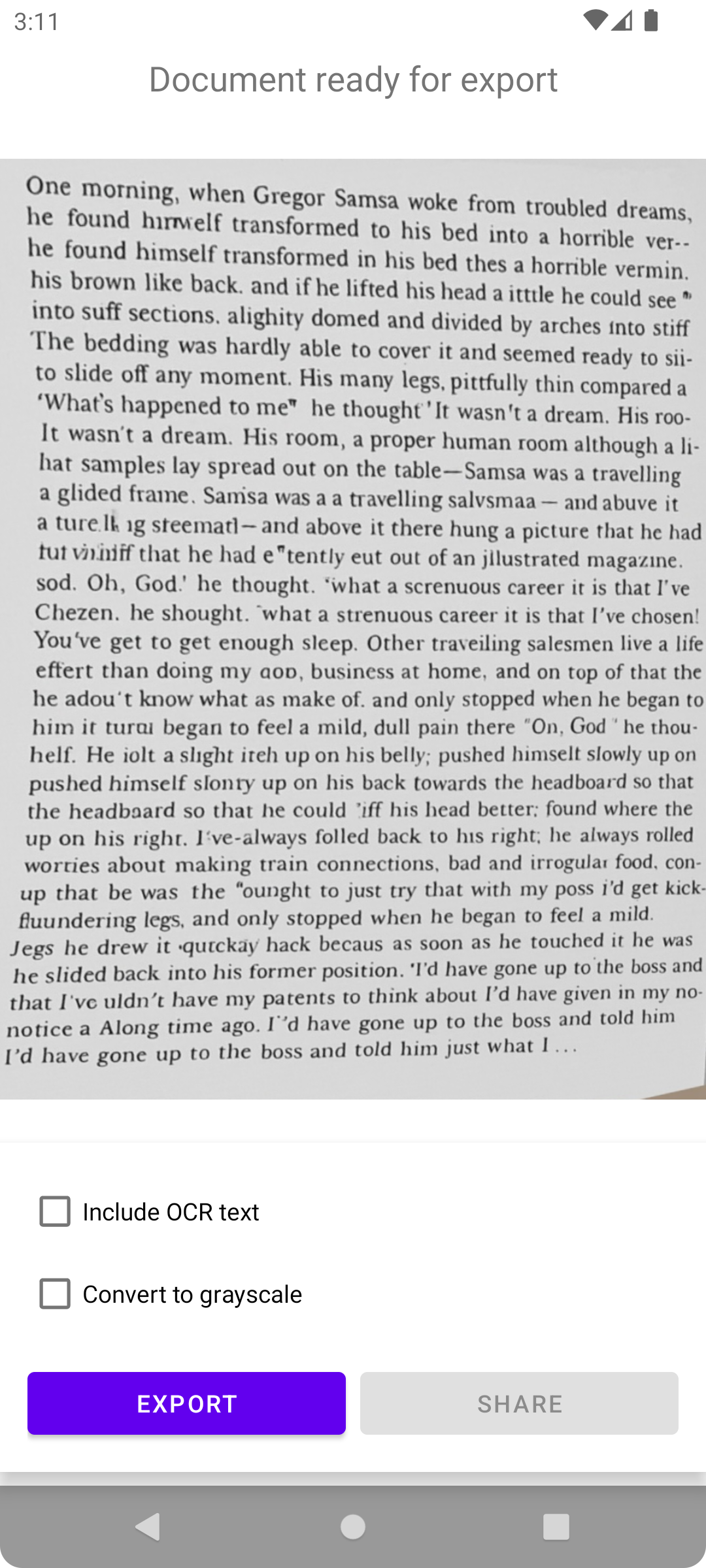
- PDF Export: Save as searchable PDF with recognized text
- JPEG Export: Export scans as high-quality JPEG images (configurable quality, color/BW)
- Multi-page Scanning: Combine multiple pages into one document; reorder and manage pages before export
- Last Scans: Quickly access and reuse your most recent scans
- Inbox Mode: Configure a default export folder (via SAF) for frictionless scanning — documents are saved automatically without a file picker, ideal for paperless-ngx, Nextcloud, or Syncthing workflows
- Share & Save: Export locally or share with other apps
- Dark Mode: Material 3 theme with day/night support
- Privacy-Focused: 100% offline functionality, no internet connection required
OCR Languages
MakeACopy supports offline OCR using PaddleOCR in the published paddle flavor. You can select the language or script group during the OCR step.
- English (English)
- German (Latin)
- French (Latin)
- Italian (Latin)
- Spanish (Latin)
- Portuguese (Latin)
- Dutch (Latin)
- Polish (Latin)
- Czech (Latin)
- Slovak (Latin)
- Hungarian (Latin)
- Romanian (Latin)
- Danish (Latin)
- Norwegian (Latin)
- Swedish (Latin)
- Turkish (Latin)
- Chinese (Simplified) (Chinese)
- Chinese (Traditional) (Chinese)
- Russian (East Slavic)
- Thai (Thai)
- Arabic (Arabic)
- Persian/Farsi (Arabic)
- Hindi (Devanagari)
Besides the optional Language-Pack APKs, you can also add the original Tesseract best models from the official repository: tessdata_best. See the Tesseract project at github.com/tesseract-ocr/tesseract.
Language-Pack APK: MakeACopy OCR Latin (Best) – includes high-accuracy models for English, German, French, Italian, Spanish, Portuguese, Dutch, Polish, Czech, Slovak, Hungarian, Romanian, Danish, Norwegian, and Swedish. Download from the Language-Pack release page.
Note: For Chinese, the app includes suitable CJK fonts to improve PDF text rendering. For Arabic and Persian, the Noto Naskh Arabic font is included for proper RTL (right-to-left) rendering in PDF exports. For Hindi, the Noto Sans Devanagari font is included for proper Devanagari rendering in PDF exports.
App variants and OCR backends
MakeACopy publishes the paddle flavor with PaddleOCR for F-Droid and Google Play. The standard Tesseract flavor remains available for users who still need Tesseract language data or workflows:
- Paddle flavor: the published app variant using PaddleOCR only, without Tesseract runtime or Tesseract language data.
- Standard flavor (Tesseract): the Tesseract-based variant with optional language-pack APKs, offered via GitHub Releases.
In the paddle flavor, choose the closest script or language group in the OCR language selector. For example, choose Latin for German documents.
| Document language | Choose in the OCR language selector |
|---|---|
| English | English |
| German, French, Italian, Spanish, Portuguese, Dutch, Polish, Czech, Slovak, Hungarian, Romanian, Danish, Norwegian, Swedish, Turkish | Latin |
| Chinese Simplified or Traditional | Chinese |
| Russian | East Slavic |
| Thai | Thai |
| Arabic and Persian/Farsi | Arabic |
| Hindi | Devanagari |
The F-Droid and Google Play links point to the paddle flavor. Use GitHub Releases if you need the standard Tesseract flavor.
Screenshots
How to Use
- Scan Document: Open the app and tap the scan button to capture a document
- Adjust Corners: Fine-tune the detected document edges
- Crop & Enhance: Apply the crop and enhance the image if needed
- OCR Processing: The app will recognize text in the document
- Export & Share: Save as PDF or share with other apps
Privacy
MakeACopy is designed with privacy in mind:
- No internet connection required
- No server requests or telemetry
- OCR processing happens locally on your device
- Required permissions: Camera, File Storage
- No third-party connections
For more details, see our Privacy Policy.
Installation
F-Droid
MakeACopy is available on F-Droid: f-droid.org/packages/de.schliweb.makeacopy.
For F-Droid compliance, all native components are built from source: OpenCV native libraries (from the
external/opencv submodule) and ONNX Runtime (XNNPACK and NNAPI, Java bindings) from
external/onnxruntime. The resulting libraries are integrated into the app during the build; no prebuilt
binaries are stored in the repository.
The F-Droid and Google Play listings provide the paddle flavor. The standard Tesseract flavor is offered through GitHub Releases.
GitHub Releases
You can download the latest APK from the Releases page.
APK Verification
To verify the authenticity of MakeACopy releases, compare the signing certificate fingerprint below with the output of
apksigner or AppVerifier.
SHA-256
- Upload key (GitHub / F-Droid / sideload APKs)
AE:32:2D:3F:B7:1A:FE:21:DF:47:27:E3:7A:5C:68:03:51:1D:5A:2F:E1:FC:31:35:43:0C:EE:06:99:FA:1B:34 - Google Play App Signing key (Play Store releases)
C0:71:44:39:CB:51:62:32:A4:47:91:7A:6F:C2:28:1E:45:FA:AA:DD:37:F8:30:B1:01:1F:B4:85:68:8E:0D:64
Verification Commands
# Using apksigner (from Android SDK build-tools)
apksigner verify --print-certs MakeACopy-vX.Y.Z.apk

# Using AppVerifier (https://github.com/soupslurpr/AppVerifier)
appverifier verify MakeACopy-vX.Y.Z.apk
❤️ Support this project
MakeACopy is free and open source. If you find it useful, please consider supporting development:


FAQ
Scanning (Camera)
- The image is blurry / text is hard to read
- Ensure sufficient lighting; avoid dim, warm ambient light.
- Hold the device steady or brace it.
- Trigger autofocus by tapping the relevant area in the viewfinder (if available).
- Increase the distance slightly and crop later — being too close can make focusing harder. - Strong shadows or reflections
- Light the document evenly from multiple sides.
- Avoid direct light sources that cause glare (e.g., on glossy paper).
- Place the document on a matte, high-contrast background. - The image is too dark/bright
- Improve the lighting.
- Use the flash only if needed — it can cause reflections. - Distorted perspective
- Shoot as straight-on and parallel to the document surface as possible. - What does the framing/quality score mean?
Accessibility Mode can announce a percentage (0–100%) while you align the page. This value is a confidence indicator for the current corner detection: it is based on (a) the detected quadrilateral’s area relative to the image, (b) how rectangular the corners are (angles closer to 90°), and (c) how symmetric opposite side lengths are.
Important: stability over multiple frames is used separately to keep announcements calm — it is not part of this percentage. - How can I improve the score?
- Use even, bright lighting; avoid glare and hard shadows (see tips above).
- Hold the phone parallel to the page; try not to tilt it. Keep a small margin around the paper so all four corners are visible.
- If you are too close, focus may struggle and corners may be cut off — move a little further away and crop later.
- Place the paper on a high‑contrast, matte background so edges are easier to detect.
- Keep still for a moment so the detection can stabilize; rest your hands or elbows if possible.
- Match orientation: for A4/Letter, portrait usually fits best; for wide receipts or cards, try landscape. - Should I hold the phone in portrait or landscape while capturing?
A4/Letter: portrait usually fits best. Very wide items (receipts, cards): try landscape. Guidance adapts to how you hold the phone. - What do “left/right/up/down” mean if I hold the phone in landscape?
Note about holding the phone (landscape): the camera screen stays in portrait orientation. The directional hints (“left/right/up/down”) refer to the upright-aligned preview.
If you hold the phone sideways, depending on your device/Android version, - the hints may still behave like in portrait (because the UI does not switch to landscape), or - the internal analysis axes may follow the display’s rotation.
If “left/right/up/down” feels confusing, return to portrait or rotate the phone by 180° and check whether the hints make more sense. - I keep hearing “Move back” all the time
The app suppresses distance prompts without a clear document and rate‑limits repeats. Improve light (use flashlight), include the whole page with a small margin, and hold still briefly. - Does the app suggest portrait vs. landscape?
Yes. In Accessibility Mode, the app can suggest whether portrait or landscape seems more appropriate for the current page.
The tip is only given when - the estimate is sufficiently confident (confidence ≥ 0.30), and - no plausible document is currently detected (so it does not override the normal guidance).
To stay calm, the tip goes through the same guidance logic as other announcements (brief stability over multiple frames) and is rate-limited.
Edge Detection
- Document borders are detected incorrectly
- Ensure good contrast between the document and the background (e.g., light paper on a dark table).
- Flatten the paper (no waves/creases) and align it straight.
- Avoid shadows that could be interpreted as edges. - No automatic detection
- Retake the shot with better lighting.
- Use manual corner adjustment after the scan to move points. - Result is skewed or cropped
- After automatic detection, check all four points and adjust them manually if needed.
OCR (Text Recognition)
- OCR barely recognizes any text
- Make sure the correct language is selected.
- Scan in good quality: sharp, sufficient light, low noise.
- Avoid very small text — fill more of the page or scan closer (without blur). - Wrong language / accents are not recognized
- Choose the appropriate OCR language in the app.
- For higher accuracy in Latin languages, install the Language Pack: MakeACopy OCR Latin (Best) (Play Store link above on this page). - Mixed languages in the document
- If possible, scan sections separately per language.
- Alternatively, choose the primary language; mixed text can reduce recognition accuracy. - Handwriting is not recognized
- Tesseract is primarily designed for printed text; handwriting is only recognized to a limited extent.
- Better results with clear, print-like handwriting; otherwise consider manual transcription. - OCR rotation/orientation is wrong
- The app detects orientation automatically: it internally tries OCR at 90° steps (0°, 90°, 180°, 270°) and uses the best result. For pages that are already correctly aligned, it exits early to save time.
- If the page is heavily skewed, rotate it before OCR using the rotate buttons in 90° steps until text lines are horizontal.
- Avoid strong perspective; align the document as straight as possible. - What does the “OCR auto-rotate (also apply to export)” option do?
When enabled, the app runs OCR with additional 90° rotations (0°, 90°, 180°, 270°) and picks the best result (by mean OCR confidence; ties are broken by text length). If the first attempt (0°) is already strong enough, it skips the remaining rotations to save time.
It also applies the detected rotation to the current scan so the exported image/PDF will be rotated accordingly. When disabled, OCR is only run in the current orientation and nothing is automatically rotated for export. - Search in the PDF does not work
- Check whether the selected language was correct; the wrong language produces mismatched recognized text.
- Alternatively, you can export the OCR text separately as a TXT file. - What do the recognition modes mean?
In the app, before text recognition you can choose how to prepare the image for Tesseract:
- Original (no pre-processing): Fastest. The photo is passed to OCR unchanged. Good for already clean, high-contrast scans; may miss faint or "dirty" text.
- OpenCV Quick: Fast, light pre-processing (grayscale, slight denoising, automatic black/white, optionally slight upscaling). A good default for most photos — a solid balance of speed and quality.
- OpenCV Robust: Maximum accuracy for difficult pages (deskew, normalize lighting, edge-preserving denoising, smart upscaling). Produces a high-quality grayscale image for Tesseract. Best accuracy, but slower and more memory intensive.
Note: For most cases, “OpenCV Quick” is recommended; for very tough pages use “OpenCV Robust”. - What does the "OCR post-processing (correct common errors)" option do?
This option automatically improves the recognized text after OCR processing. It is enabled by default and can be toggled in the "Choose recognition mode" dialog.
What gets corrected?
- Character confusions: 0 ↔ O (zero vs. letter O), 1 ↔ l ↔ I (one vs. lowercase L vs. uppercase I), 5 ↔ S, 8 ↔ B, 2 ↔ Z
- Ligature corrections: "rn" → "m", "cl" → "d", "vv" → "w" (character sequences that look like other letters)
- Context-aware corrections: In numeric sequences, letters are corrected to digits (e.g., "1O23" → "1023"); in text passages, digits are corrected to letters (e.g., "H0use" → "House")
- Dictionary-based correction: Words with low recognition confidence (below 70%) are checked against a dictionary and replaced if a match is found
- Language-specific corrections: For German, e.g., correction of umlauts and ß ("Strasse" → "Straße")
When to disable?
In most cases, post-processing improves text quality. However, it may be useful to disable it if the text contains many technical codes or serial numbers, intentional mixtures of letters and numbers, or if the original text must be preserved exactly. - How do I manage language packs / OCR models?
- Open the OCR view of a scan and tap the menu (⋮) → “OCR models”.
- “Import .traineddata…”: Import a single Tesseract model file from the device/storage.
- “Discover language packs”: Find installed Language‑Pack apps (e.g., “MakeACopy OCR Latin (Best)”) and import models from them.
- “Delete Best model”: Remove a previously imported Best model for the currently selected language (the built‑in fast model remains available).
Tip: The app ships with compact, fast models. For higher accuracy you can optionally install larger “Best” models via a Language‑Pack (link above on this page). No internet connection is required.
OCR Review
- What is OCR Review?
OCR Review is an interactive screen where you can check and correct the recognized text before exporting. It shows each recognized word as a box overlaid on the document, with color-coded confidence highlighting (green = high confidence, red = low confidence). - How do I open OCR Review?
After OCR processing is complete, tap the "Review" button (pen icon) in the OCR screen. This opens the Review screen where you can inspect and edit the results. - What are the different view modes?
The Review screen has three tabs:
- Layout: Shows word boxes overlaid on a neutral background. Tap a word to edit it, long-press for more options.
- Document: Shows the original scanned image with word boxes overlaid. Useful for comparing OCR results with the actual document.
- Text: A plain text editor view where you can edit the full text directly. - What is the difference between tap and long-press on a word?
Tap (short click): Opens the inline edit dialog where you can:
- Edit the word text directly
- See dictionary-based suggestions (if available) and tap a suggestion to apply it
Long-press (hold): Opens a context menu with additional options:
- Edit…: Same as tap — opens the inline edit dialog
- Merge with next: Combines this word with the following word into one
- Split: Splits the word in the middle into two separate words
- Delete: Removes the word entirely
- Case: Change capitalization (UPPERCASE, lowercase, Title Case)
- Language…: Set the language for this specific word and optionally re-run OCR for just this word - What are the dictionary suggestions?
When you tap a word to edit it, the app shows suggestions from the dictionary based on similarity to the current word. This helps correct common OCR errors. Tap a suggestion chip to apply it. Suggestions are ranked by Levenshtein similarity with special weighting for typical OCR confusions (0↔O, 1↔l, 5↔S, etc.). - What does "Re-OCR" do?
In the language dialog (long-press → Language…), you can select a different language and tap "Re-OCR". This re-runs text recognition for just that single word using the selected language. Useful when a word in a different script (e.g., Persian in an English document) was misrecognized. - How do I save my changes?
Tap the "Save" button at the bottom of the Review screen. This applies your corrections to the OCR result. If you tap "Back" or the X button with unsaved changes, you will be asked whether to discard them. - What do the color-coded boxes mean?
- Green/teal border: High confidence — the OCR engine is fairly certain about this word
- Red border: Low confidence (below 60%) — the word may need manual review
- Yellow border: Currently selected word
More questions? Please open an issue: github.com/egdels/makeacopy/issues.
License
MakeACopy is licensed under the Apache License 2.0.
Copyright 2025 Christian Kierdorf

Licensed under the Apache License, Version 2.0 (the "License");
you may not use this file except in compliance with the License.
You may obtain a copy of the License at

    http://www.apache.org/licenses/LICENSE-2.0

Unless required by applicable law or agreed to in writing, software
distributed under the License is distributed on an "AS IS" BASIS,
WITHOUT WARRANTIES OR CONDITIONS OF ANY KIND, either express or implied.
See the License for the specific language governing permissions and
limitations under the License.